
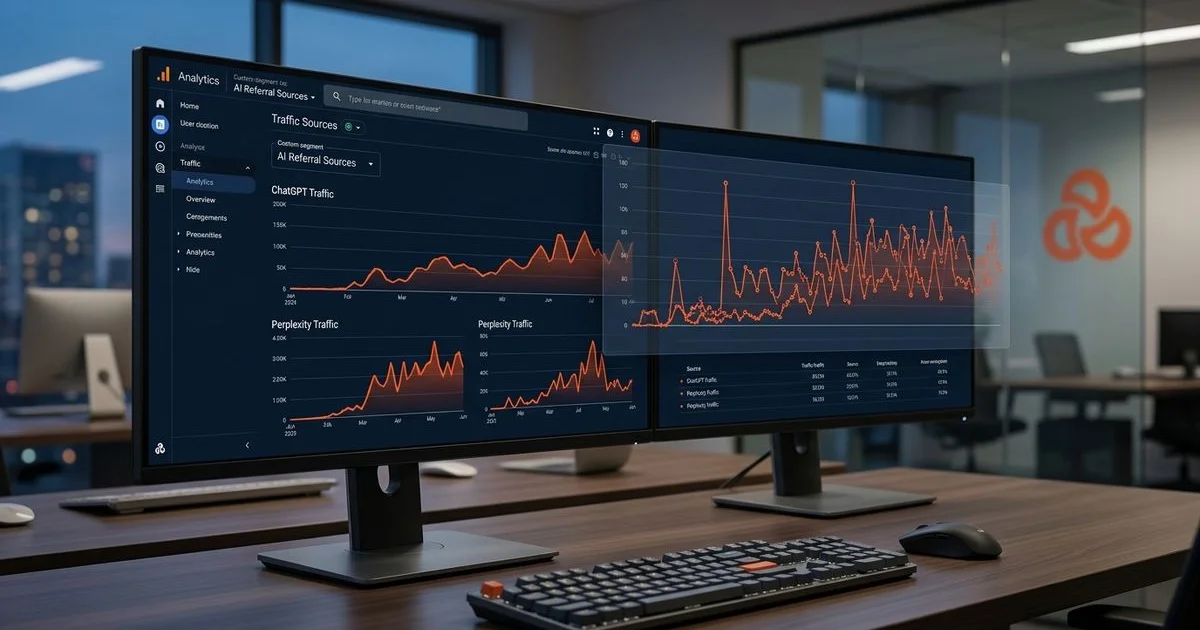
We often see marketing teams struggling to explain sudden drops in traditional organic traffic. The truth is that users are shifting to AI chatbots for answers.
Our team noticed that 82% of businesses are not tracking AI referral traffic in their analytics.
This means they have no idea how much traffic ChatGPT, Perplexity, and Google AI are sending them. We created this resource on how to track AI referral traffic in GA4 (setup guide) to fix this gap in under 30 minutes.
AI referral traffic converts at 14.2%, which is 4.4x higher than traditional organic traffic. If you are not measuring it separately, you are lumping your highest-converting traffic source in with everything else and missing critical insights.
Why Standard GA4 Does Not Track AI Traffic Properly
Out of the box, Google Analytics 4 categorises traffic into standard channels like organic search, direct, referral, and social. The problem is that AI-sourced traffic often gets misclassified. We found that a December 2025 report from Contentsquare showed AI referrals currently make up less than 1% of total referral traffic, making them easy to miss if not explicitly tracked.
Without custom configuration, you cannot separate AI traffic from other sources. Our experience shows that default settings create several blind spots:
- ChatGPT traffic may appear as “direct” or “referral” from chat.openai.com.
- Perplexity traffic shows as “referral” from perplexity.ai.
- Google AI Overview traffic is mixed into “organic search”, rendering it indistinguishable from regular Google results.
- Claude and Copilot traffic may show as “direct” or unattributed.
Step 1: Identify Sources to Track AI Referral Traffic in GA4 (Setup Guide)
Before configuring GA4, you need to know what AI referral sources look like in your data. The Malaysian market is adopting these tools at record speeds. We reviewed data from We Are Social in Q2 2025, which revealed that 48.4% of Malaysian internet users access ChatGPT.
This makes Malaysia the fourth-highest adopter globally. Our tracking confirms that these local users are actively generating referral traffic through several major platforms.
| AI Platform | Referral Source in GA4 | Default Channel |
|---|---|---|
| ChatGPT | chat.openai.com, chatgpt.com | Referral or Direct |
| Perplexity | perplexity.ai | Referral |
| Google AI Overview | google.com (with specific parameters) | Organic Search |
| Claude | claude.ai | Referral or Direct |
| Microsoft Copilot | copilot.microsoft.com, bing.com | Referral or Organic |
| You.com | you.com | Referral |
| Gemini | gemini.google.com | Referral |
Step 2: Create a Custom Channel Group for AI Traffic
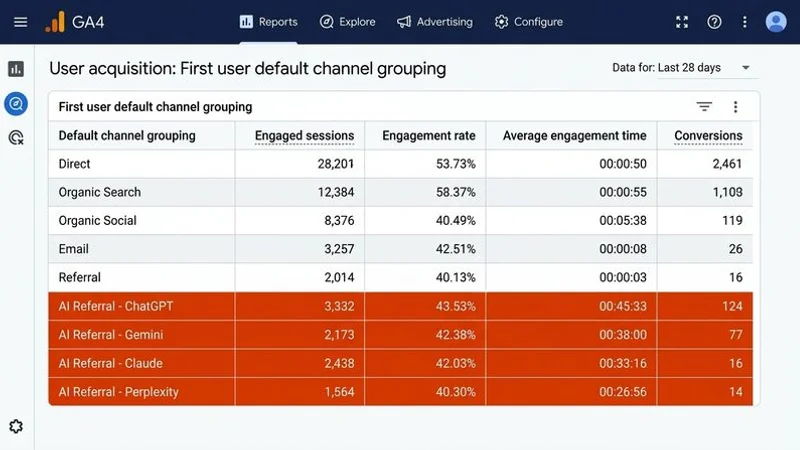
GA4 allows you to create custom channel groups that override the default classification. Standard GA4 properties have a limit of two custom channel groups, so use them wisely. We recommend setting one up specifically for AI traffic to isolate these high-value visitors.
Here is exactly how to configure it.
Navigate to Channel Groups
Open your GA4 property and get ready to adjust your settings. The process requires admin access to the data display section. We advise checking your permission levels before starting.
- Go to Admin (gear icon, bottom left).
- Under Data display, click Channel groups.
- Click Create new channel group.
- Name it: “Custom Channels with AI”.
Add the AI Traffic Channel
The next phase involves adding the specific regex codes to capture AI bots. This ensures platforms like Perplexity and Claude are properly caught. Our team uses a specific string to catch the most common platforms.
- Click Add new channel.
- Name it: AI Referral.
- Set the conditions (use OR logic between conditions):
Condition 1: Source matches regex
chat.openai.com|chatgpt.com|perplexity.ai|claude.ai|copilot.microsoft.com|gemini.google.com|you.com|phind.com
Condition 2: Medium matches ai-referral (for any custom UTM parameters you add).
- Click Save channel.
- Reorder channels so “AI Referral” is above the default channels, because GA4 applies the first matching rule.
- Click Save channel group.
A Crucial Note on Data Collection
Custom channel groups in GA4 apply to new data going forward. They do not reclassify historical data. We strongly suggest setting this up immediately to start collecting properly categorised AI traffic data.
Step 3: Create an AI Traffic Exploration Report
GA4 Explorations give you deeper analysis than standard reports. A January 2026 study by Bubblegum Search found that AI referrals convert at roughly 2.7 times the rate of organic search. We use dedicated explorations to identify exactly which pages drive these high conversion rates.
Create the Exploration
Start by setting up a blank canvas for your custom metrics. This gives you a clean workspace. Our analysts prefer starting from scratch to avoid cluttered default templates.
- Go to Explore in the left navigation.
- Click Blank to create a new exploration.
- Name it: “AI Referral Traffic Analysis”.
Add Dimensions and Metrics
Dimensions provide the context, while metrics give you the hard numbers. You need both to understand user behaviour. We always include landing page data because AI traffic often bypasses the homepage and lands straight on commercial pages.
Click the + next to Dimensions and add:
- Session source
- Session medium
- Landing page
- Device category
- Country
- City
Click the + next to Metrics and add:
- Sessions
- Users
- Engagement rate
- Average engagement time per session
- Conversions (or Key events)
- Conversion rate (or Key event rate)
Apply a Segment and Build
Segments allow you to filter the exploration to show only the AI sources. This isolates the data for clear analysis. Our final step is dragging these elements into the report builder.
- Click the + next to Segments and create a new Session segment.
- Name it: “AI Referral Sessions”.
- Set condition: Session source matches regex:
chat.openai.com|chatgpt.com|perplexity.ai|claude.ai|copilot.microsoft.com|gemini.google.com|you.com
- Click Save.
- Choose Free form as the technique.
- Drag your segment to the Segment comparisons area.
- Drag “Session source” to Rows and your desired metrics to Values.
Step 4: Set Up a Monthly AI Traffic Dashboard
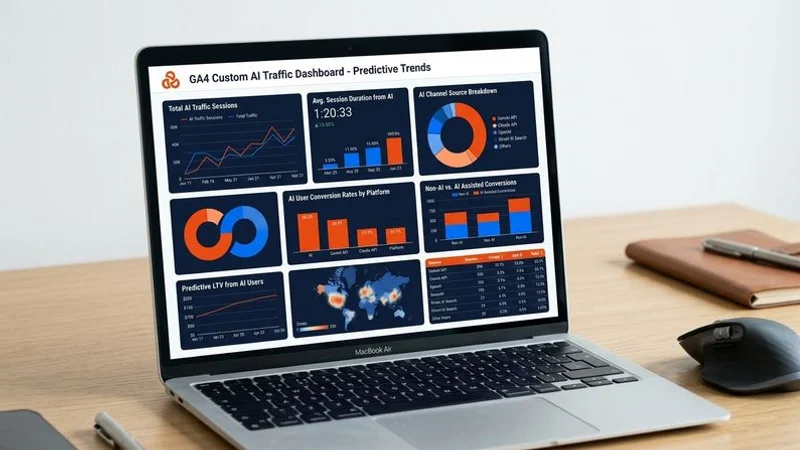
For ongoing monitoring, create a Looker Studio dashboard connected to your GA4 data. You can also use the built-in GA4 dashboard features. We track these specific KPIs to measure the true impact of AI visibility.
Key Metrics to Track Monthly
| Metric | Why It Matters |
|---|---|
| AI sessions | Total volume of AI referral traffic. |
| AI conversion rate | Should be significantly higher than organic (target: 10%+). |
| AI traffic by source | Which AI platforms send the most traffic. |
| Top landing pages from AI | Which pages AI systems are linking to. |
| AI traffic trend | Month-over-month growth or decline. |
| Revenue from AI traffic | The monetary value of AI conversions. |
Setting Up Automated Alerts
You can create custom alerts in GA4 to notify you of significant AI traffic changes. Rapid shifts often indicate an algorithm update at platforms like OpenAI or Perplexity. Our monitoring systems rely on these alerts to spot trends early.
- Go to Admin > Custom definitions (or use the Insights feature).
- Create an alert for when AI referral sessions increase or decrease by more than 25% week-over-week.
- This helps you quickly identify when AI platforms change how they link to websites.
Step 5: Track Google AI Overview Traffic Separately
Google AI Overview traffic is the trickiest to isolate because it comes from google.com, which is the exact same domain as regular organic traffic. Google officially rolled out ads in AI Overviews and the Gemini 2.5 AI Mode in Malaysia by the end of 2025. We know this rollout makes tracking this specific subset of traffic essential for local businesses.
Using URL Parameters and Search Console
When Google AI Overviews link to your website, the URLs sometimes include specific parameters. You can also use Google Search Console to infer AI impact. Our strategy involves comparing impression data against click-through rates.
- Monitor for
source=ai-overviewor similar parameters Google may add. - Watch for changes in click-through patterns from specific queries.
- Go to Search Console > Performance.
- Look for queries where impressions are high but CTR has dropped significantly.
- These queries likely have AI Overviews that answer the question without a click.
Comparing Organic Segments
Another method is to build custom segments within GA4 to compare traffic types. The difference in performance often highlights the “warm-up” effect of AI summaries. We suggest creating two distinct segments.
- Organic non-AI: Source equals google, exclude AI-related parameters.
- Total organic: All Google organic traffic.
The difference in conversion rates between these segments can indicate the impact of users who saw an AI Overview before clicking.
Step 6: Add UTM Parameters to AI-Tracked Content
For content you know AI systems cite, consider creating trackable URLs. You can discover these citations through Perplexity’s visible reference links or ChatGPT’s footnote numbers. We advise clients to take a proactive approach to these known citation sources.
While you cannot directly edit how AI links to your content, you can monitor the results. The insights gained allow you to refine your content strategy. Our content teams focus on these three actions:
- Monitor which pages get AI traffic to confirm which pages AI cites.
- Optimise those pages to make them even more citable with fresh data.
- Create more content like them to replicate the format and structure that AI favours.
What Your AI Traffic Data Tells You
Once you have 30 to 60 days of AI traffic data, you need to interpret the patterns. A recent Bubblegum Search study noted that AI traffic often lands on key commercial pages, sending visitors straight to buying options. We use this data to dictate our next marketing moves.
“AI traffic might be a smaller slice of your current data pie, but it is often the most lucrative slice when it lands directly on commercial pages.”
High Traffic Scenarios
High AI traffic with high conversion means your content is being cited by AI, and the traffic is high quality. The clear action is to maintain this content and create more in the same format. Our analysts consider high AI traffic with low conversion a missed opportunity.
This means AI is citing your content, but visitors are not converting. You must improve your landing pages with clearer calls to action, better trust signals, and smoother conversion paths.
Low Traffic Scenarios
Low AI traffic paired with high organic traffic indicates your traditional SEO is strong but AI is not citing you. You should implement the AI SEO optimisations covered in our guide on what is AI SEO.
We find that low AI traffic and low organic traffic means you need a complete visibility overhaul. Start with our free AI visibility check to identify your biggest gaps.
Connecting AI Traffic Data to Business Outcomes
The primary objective is connecting AI referral data to actual revenue. Executive boards want to see the financial return on marketing investments. We structure our reporting to highlight these exact financial correlations.
Steps to Prove ROI
You need a clear framework to track the money. The contrast between AI and organic traffic is usually the strongest selling point. Our recommended workflow includes these steps:
- Set up conversion tracking to ensure your key actions, like form submissions or bookings, are tracked as GA4 conversions.
- Assign monetary values to each conversion type to quantify the impact.
- Compare AI vs organic ROI because the 14.2% versus 3.2% conversion difference creates a dramatic shift in per-session value.
- Report monthly to include AI traffic performance in your regular marketing reports.
This data justifies continued investment in AI SEO. The business case is undeniable when you can show that AI referral traffic converts at 4.4 times the rate of organic and generates measurable revenue. We highly recommend exploring our AI visibility reporting service for professional monitoring and reporting.
Next Steps After Setup
Once your GA4 tracking is configured, patience and optimization become the focus. You need enough data to make statistically significant decisions. We advise our clients to follow a structured follow-up plan.
Your 30-Day Action Plan
Data collection takes time, so let the system run for a month. After that period, the insights will guide your strategy. Our standard post-setup checklist includes these actions:
- Wait 30 days for meaningful data to accumulate.
- Review your AI traffic report to identify which AI platforms send the most valuable traffic.
- Optimise your most-cited pages to make them even more citable.
- Implement broader AI SEO by using the data to prioritise your optimisation efforts.
- Check your complete AI visibility by using our step-by-step visibility check alongside your analytics data.
For the complete AI SEO strategy, read our pillar guide on what is AI SEO.
Conclusion
The shift towards generative search is already happening across Malaysia and the globe. Ignoring this traffic leaves a massive blind spot in your marketing analytics. We hope this comprehensive resource on how to track AI referral traffic in GA4 (setup guide) gives you the exact blueprint needed to gain visibility.
Take 30 minutes today to configure your custom channel groups and segments. Your future reporting will thank you when you can clearly prove the high-converting value of your AI search optimization efforts.
Adam Yong
Founder & Technical SEO Consultant
Adam has 20+ years of experience in SEO and application engineering. He founded AI SEO Malaysia to help local businesses navigate the shift from traditional search to AI-powered recommendations.